
Interactive Flat Panels (IFPs) — often called digital boards, smartboards, or interactive displays — have become central to modern teaching and collaboration. They replace clunky projectors and passive whiteboards with bright, multitouch screens that combine display, computer, audio, annotation, and connectivity in one unit. Choosing the right IFP matters: the wrong choice wastes budget and frustrates teachers and teams; the right one lifts engagement, simplifies workflows, and lasts for years.
This guide helps you select the right Interactive Flat Panel for classrooms and workspaces in a practical, actionable way. It includes key features, technical specifications, deployment methods, access and security, procurement, and ROI (return on investment), maintenance, as well as a checklist and sample RFP language for your reuse.
Why an IFP — benefits at a glance
Interactive Flat Panels introduce a variety of improvements that reshape everyday teaching and teamwork. Many of these strengths have been discussed in detail in our earlier insights, and the points below highlight the most important ones at a glance.
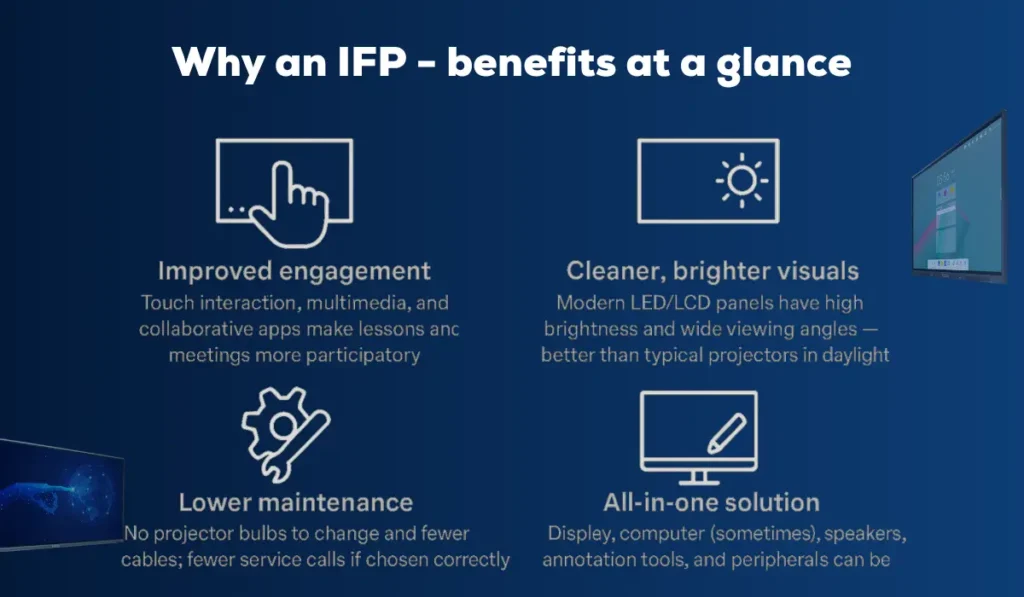
Improved engagement: with touch interaction, multimedia, and collaborative apps, your lessons and meetings will be much more participatory.
Cleaner, brighter visuals: Modern LED/LCD panels offer high brightness and wide viewing angles — better than typical projectors in daylight.
Lower maintenance: No projector bulbs to change and fewer cables; fewer service calls if chosen correctly.
All-in-one solution: Display, computer (sometimes), speakers, annotation tools, and peripherals can be integrated.
Versatile use-cases: Teacher-led lessons, student collaboration, remote teaching, video conferencing, corporate brainstorming, and digital signage.
Understanding the Role of Interactive Flat Panels in Modern Learning and Work Environments

Interactive Flat Panels (IFPs), or Digital Whiteboards, have progressed from basic touch displays to being the focus of digital collaboration. In classrooms, IFPs make lessons interactive and multimedia, capturing students’ attention. In the office, they enable seamless brainstorming, hybrid meetings, and remote collaboration. However, there are hundreds of models, features, and price points to consider. So choosing the right one for your school or business is not just about the cost – it’s about matching your technology to your real-world needs. The following steps will help you make an informed, future-ready choice:
Step 1 – Define the core use-cases
Please take time to identify the primary uses of the IFP before comparing the specifications or brands of digital boards. Possible categories include:
Primary teaching display for K–12 classrooms: Active writing or annotation, document camera feeds, lesson playback, and student response systems.
Higher-education lecture capture & hybrid classrooms: Having integrated camera/mic support, lecture recording workflows, and LMS integration.
Corporate huddle rooms and meeting rooms: Video conferencing, whiteboarding, screen-sharing from multiple devices.
Training rooms/labs: Attending multi-source switching, touchscreen kiosks, and specific software support are all examples of features.
Multi-use spaces: May require considerable attention toward inputs, room scheduling display, locks, or management.
Consider your use cases, and pair the associated device features you see listed to each. For example, in a K–12 room, you may want to prioritize ruggedness of the device and ease of annotation, while your lecture capture space may prioritize OPS (open pluggable specification) slots/compute and functionality for audio/video capturing.
Step 2 – Key technical features and what they mean for you
Consider these key technical features to assess before you buy your interactive flat panel:
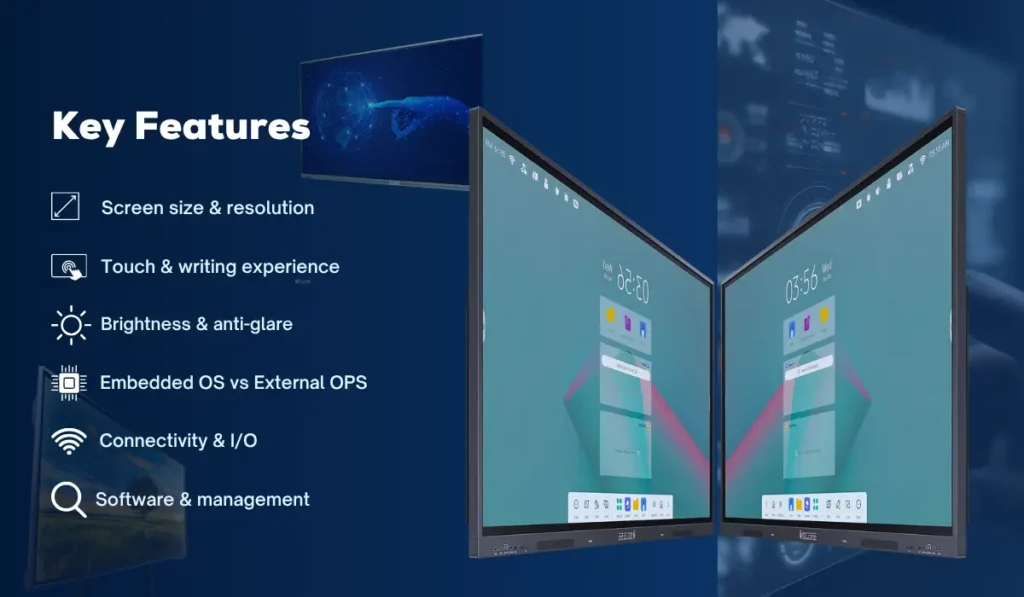
Screen size & resolution
Size: Classrooms (65″–86″) — take into consideration how big your classroom is and how far the students are from the board when determining size. For workspaces, 55″-75″ is good for small rooms and 86″+ for auditoriums.
Resolution: A minimum of Full HD (1920 X 1080) is acceptable for a small room, but for clearer text and a better experience, aim for 4K (3840 x 2160) for crisper print, less eye strain, and future-proofing.
Touch & writing experience
Touch Points: 10+ simultaneous touch points for collaborative work.
Pen / Palm Rejection: Seek out a low-latency (EMR or active) pen with palm rejection and minor parallax.
Latency: Lower latency improves handwriting feel — if possible, try it out first.
Brightness & anti-glare
Brightness: 300 – 500 nits (normal classroom) – if your classroom gets a lot of light, the brightness would benefit you.
Surface coating: An anti-glare and an anti-fingerprint coating would be good for less glare and smudges.
Embedded OS vs External OPS
Embedded Android: An easier option, less expensive, with an educational app ecosystem, and less flexible with legacy Windows software.
Windows/OPS (Open Pluggable Specification) module or built-in Windows PC: Fine for running full desktop applications, may be better for schools with Windows software.
Hybrid approach: Some IFPs allow OPS modules, so you can swap computers later — a great future-proof option.
Connectivity & I/O
HDMI 2.0/2.1, DisplayPort, USB-C (with display & power), multiple USB-A ports.
Ethernet + Wi-Fi 5/6: Wired for stability in lecture capture; Wi-Fi convenient for BYOD.
Bluetooth: For audio peripherals and device pairing.
Audio: Built-in speakers (total wattage), microphone arrays, and audio-out for AV systems.
Camera & audio
Built-in cameras: Essential for hybrid classrooms and huddle spaces; be sure to test crop/auto-framing functionality.
Microphone arrays: Beamforming microphones with noise cancellation ensure remote participants can hear audio clearly.
External device support: Ensure the camera and microphone are compatible with external USB cameras or microphones, which facilitates future upgrades.
Software & management
Annotation and whiteboarding applications: Native whiteboard that saves sessions to the cloud/LMS.
Device management (MDM): Remote firmware updates, lockdown, and monitoring for fleets.
Compatible with conferencing applications: Native Teams/Zoom clients, or more easily sharing content to the screen.
Content management: For multiple site deployments, it enables content to be pushed to a central repository and allows for scheduling.
Security & privacy
OS patching and security updates: This is primarily important for Android devices.
Network security: Support for enterprise Wi-Fi (WPA2/WPA3), VLANs, and secure boot.
Camera/mic privacy controls: Covers and hardware switches for camera/mic safety.
User authentication use: The ability to integrate with SSO or directory-based services for administrator control.
These features don’t just affect usability — they play a major role in enabling seamless hybrid work.
Step 3 – Durability, warranty, and serviceability
Assure the longevity of your purchase by taking into consideration reliable build quality, solid after-sales support and service, and the maintenance requirements.
Warranty length & coverage: It is preferable to have a warranty length of 3-5 years with on-site service assistance, and cover accidental damage (if budget allows).
Mean time between failures (MTBF): If reliability metrics are provided by the vendor, they can help you in your analysis.
Repairability: OPS slots and modular components (power supplies, speakers, etc.), help minimize the long-term service costs.
Service network: On-site technical support and parts availability in your area are important.
Step 4 – Accessibility, inclusivity, and compliance
Ensure your interactive flat panel supports every user by integrating accessibility, ergonomic, and universal design features.
- Adjustable mounting: Height-adjustable carts or motorized mounts help users with mobility needs.
- High-contrast modes & screen readers: For low-vision users, support for magnification and text-to-speech.
- Captioning & transcription: Real-time captioning support for meetings and recorded lectures helps hearing-impaired users.
- Physical buttons / tactile controls: Useful for users with limited fine motor control.
Step 5 – Integration with pedagogy and workflows
IFPs are tools — they must support teaching practices, not dictate them.
- Lesson capture & LMS integration: Check how captured lessons are exported with metadata, how they integrate with Moodle, Canvas, or your LMS.
- Student device pairing: BYOD-friendly screen sharing (AirPlay, Miracast, Chromecast, USB-C) avoids adapter chaos.
- Assessment & interactivity: Look for polling, quizzes, and student response integrations.
- Collaboration beyond the room: Cloud whiteboards and multi-user collaboration let remote and in-room participants work together.
Step 6 – Network & cybersecurity considerations
Treat IFPs like any networked device:
- Segmentation: Put IFPs on their own VLAN to restrict lateral movement if compromised.
- Patch management: Ensure vendor supplies regular firmware and OS patches; prefer devices that support automated updates via MDM.
- Disable unnecessary services: Turn off microphones, cameras, or USB ports when not needed.
- Physical security: Lockable mounts, tamper-evident seals, and cable management reduce theft and vandalism.
Step 7 – Procurement, budgeting, and ROI
Total cost of ownership (TCO) includes:
- Purchase price of panel and mount.
- OPS module or built-in PC cost and licenses.
- Installation and commissioning (AV integrator fees).
- Network upgrades (if needed).
- Warranty extension and maintenance plans.
- Staff training.
- Annual software subscriptions (if any).
Measuring ROI
- Pedagogical impact: Improved student outcomes, engagement metrics, and teacher satisfaction surveys.
- Operational efficiency: Fewer projector bulbs replaced, lower AV downtime.
- Space utilization: Faster meeting starts and better hybrid meeting experiences.
Collect baseline metrics before deployment to measure impact.
Step 8 – Deployment & installation best practices
Proper deployment is just as important as selecting the right Interactive Flat Panel. A well-planned installation ensures optimal visibility, usability, and long-term reliability, helping teachers and teams make the most of the technology from day one.
- Room assessment: Lighting, sightlines, acoustic treatment, and power outlets.
- Mounting height: For classrooms, the center of the screen should be visible from the back row; for accessibility, consider lower mounts or adjustable carts.
- Cable management: Use conduit or raceways; label cables and leave access for future upgrades.
- Commissioning checklist: Verify inputs, audio levels, video calibration (color & gamma), touch registration, Wi-Fi connectivity, and camera framing.
- Teacher onboarding: Short hands-on workshops and quick-start guides increase adoption.
Read This: Advantages of Using an Interactive Flat Panel for Education
Maintenance, Troubleshooting & Lifecycle Planning
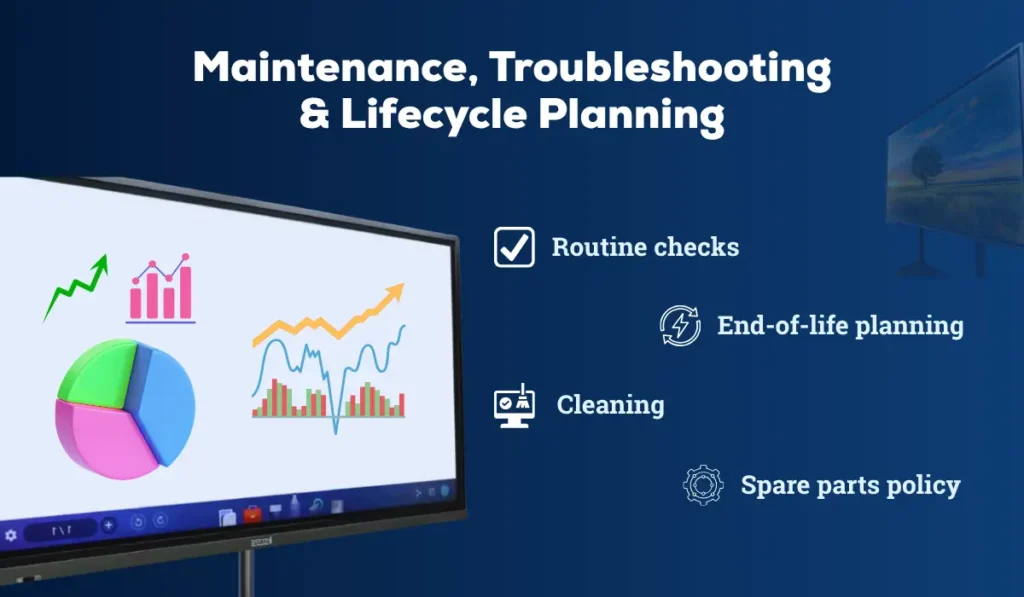
Effective maintenance and lifecycle management are essential to keep your Interactive Flat Panel (IFP) or Digital Board performing at its best. Regular checks, timely troubleshooting, and planned replacements help minimize downtime, extend device life, and ensure a smooth user experience. Below are key areas to focus on:
- Routine checks: Monthly health checks via MDM reports — storage, temperature, firmware status.
- Cleaning: Use manufacturer-recommended cleaners (usually microfiber and mild solutions). Avoid harsh chemicals that damage coatings.
- Spare parts policy: Keep spare pens, power supplies, and at least one OPS module for quick swap.
- End-of-life planning: Reuse or recycle responsibly; plan funding for replacement every 6–10 years, depending on usage.
This proactive maintenance approach not only ensures reliable operation but also maximizes the long-term return on investment for your classroom or workspace technology.
Common Pitfalls and How to Avoid Them
Even the best Interactive Flat Panels can fail to deliver results if not chosen, deployed, or managed correctly. Many institutions make preventable mistakes during procurement or rollout — often due to budget pressures, technical assumptions, or lack of planning.
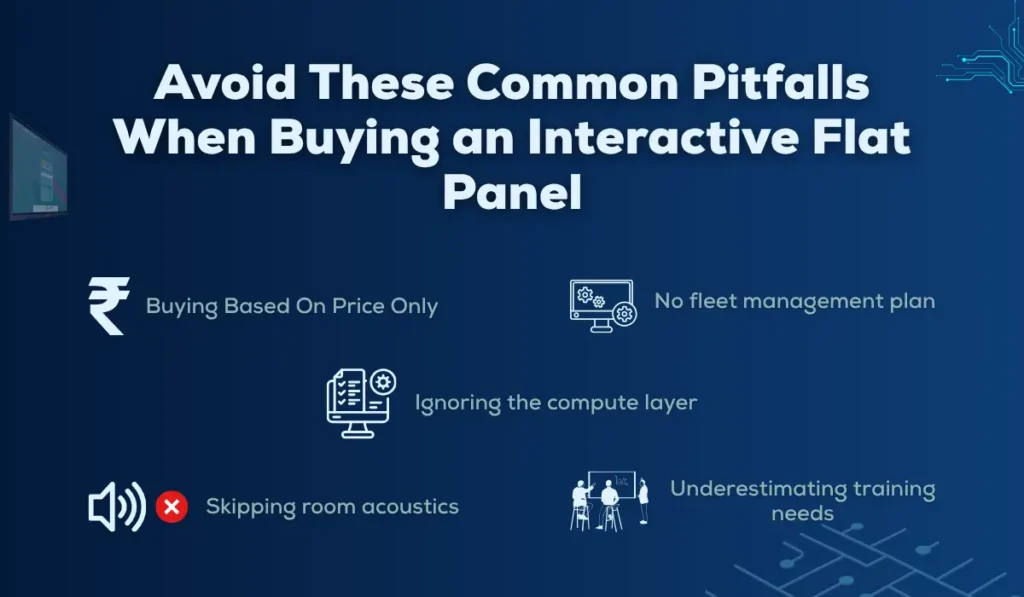
Understanding these pitfalls early helps you avoid costly upgrades, underutilized devices, and frustrated users.
- Buying based on price alone: Low-cost panels often cut corners on touch accuracy, longevity, or after-sales support. Always balance cost with total value and long-term service reliability.
- Ignoring the compute layer: If your workflow relies on Windows-based applications, an Android-only panel will create compatibility issues. Choose OPS-ready or hybrid solutions to future-proof your investment.
- Skipping room acoustics: Even the best display fails if sound quality is poor. Invest in quality microphones and speakers, and assess room acoustics to ensure clear communication for remote participants.
- No fleet management plan: Managing dozens of panels manually is inefficient. Without a Mobile Device Management (MDM) system, updates, troubleshooting, and monitoring quickly become overwhelming.
- Underestimating training needs: The most advanced technology is wasted if users don’t know how to use it. Plan short, hands-on training sessions and provide quick-reference guides or cheat sheets for teachers and staff.
Final checklist — quick review before purchasing
- Defined primary use-cases and room profiles.
- Select screen size and resolution to match the room size.
- Chosen OS/compute strategy (embedded vs OPS).
- Verified touch quality, latency, and pen features.
- Confirmed audio/mic/camera requirements.
- Evaluated warranty, support SLAs, and local service.
- Confirmed network security, MDM, and patching cadence.
- Planned teacher training and commissioning schedule.
- Included accessibility and sustainability considerations.
- Created metrics to measure ROI post-deployment.
Why Choose iSLate Technologies
At iSLate Technologies, we provide the best and most reliable Interactive Flat Panels (IFPs) designed for both classrooms and workspaces. Our smart digital boards combine ultra-responsive touch technology, crystal-clear 4K displays, and powerful built-in computing to deliver seamless interactivity and superior performance.
Whether you’re enhancing teaching, enabling hybrid meetings, or transforming your training rooms, our panels ensure clarity, collaboration, and long-term value. We don’t just sell devices — we deliver comprehensive digital solutions, including installation, training, and ongoing support, to help you maximize the value of your investment. We provide digital board solutions for conference rooms with seamless video conferencing integration, designed to enhance meetings by making them more interactive, efficient, and collaborative.
Conclusion
Selecting the Right Interactive Flat Panel (IFP) for your classroom and workspace is about much more than buying a digital board — it’s about empowering collaboration, engagement, and efficiency. The right IFP will truly change the way teachers deliver lessons, the way students engage, and the way professionals share their ideas in meetings.
An ideal IFP has excellent touch accuracy, 4K clarity, seamless connectivity, and intuitive software that parallels both educational and corporate environments. Whether you’re modernizing a classroom or upgrading a conference room, your goal is the same: to create a connected, interactive learning space that encourages participation and innovation.
In 2026 and beyond, organizations that invest in the Right Interactive Flat Panel (IFP) for Classrooms and Workspaces will gain a significant advantage — smarter communication, enhanced learning outcomes, and a return on investment in technology that serves people effectively.
FAQs
Do I need a 4K panel?
4K is recommended if you display detailed content (small text, spreadsheets) or plan to keep the device for many years. For basic annotation and videos, Full HD can be adequate in small rooms.
How long should an IFP last?
With moderate use and good maintenance, expect 6–10 years. Plan for compute upgrades earlier via the OPS modules.
Can I use an IFP for video conferencing?
Yes, ensure the panel supports native conferencing apps or that your external camera/microphone integrates cleanly.
How to choose a smart board
When choosing a smart board, focus on your needs — classroom or office — and look for features like multi-touch support, 4K resolution, smooth writing response, and reliable software. Ensure it’s easy to use, integrates with your existing devices, and comes with strong after-sales support.



Pingback: 10 Advantages of Using an Interactive Flat Panel for Education
Pingback: Top 5 Digital Board Brands in India
Pingback: How Interactive Digital Boards Are Revolutionizing Hybrid Workspaces - islatetechnologies
Pingback: How Interactive Digital Boards Are Transforming Hybrid Work
Pingback: Best Digital Board For Teaching In India | Complete Classroom Guide
Pingback: What Is OPS in Digital Board? Complete OPS Guide
Pingback: How to Choose the Best OPS for the Interactive Panel Complete Guide
Pingback: Top-Rated Interactive Flat Panel Brands for Corporate Offices
Pingback: Where to Buy Interactive Flat Panels With 4K Resolution
Pingback: How to Use Digital Board in Classroom | Get Expert Guide
Pingback: How to Choose Digital Display Solutions for Corporate Offices